How It Works

A quick guide to downloading, storing, searching, and getting the most from your Prepper Offline library.

Prepper Offline USB
Quick Start
Download your library, save it to a reliable device like a hard drive or USB, unzip it, open the PrepperOffline-yyyy-mm folder where yyyy is the year and mm is the month, double click on the main start page (START-HERE.html), and use the built-in offline navigation and search tools to find the information you need.
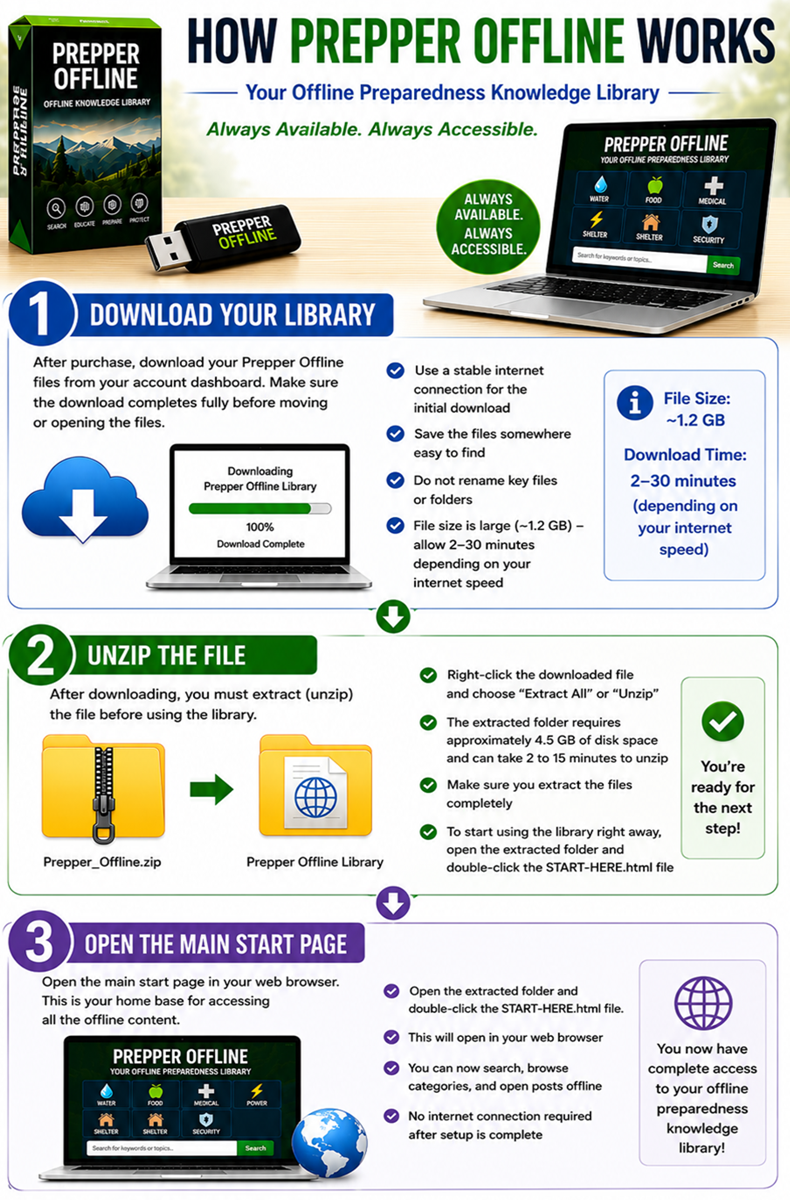
Step 1: Download Your Library

After purchase, download your Prepper Offline files from your account dashboard. Make sure the download completes fully before moving or opening the files.

  • Use a stable internet connection for the initial download
  • Save the files somewhere easy to find
  • Do not rename key files or folders unless you know what each file does
  • The download file is large (@1.2 GB), please allow extra time for it to finish completely (typically between 2-30 minutes depending on the speed of your internet)
Step 2: Unzip the File

After downloading, you must extract (unzip) the file before using the library.

  • Right-click the downloaded file and choose “Extract All” or “Unzip”
  • This will create a new folder containing the full offline library
  • The extracted folder requires approximately 4.5 GB of disk space and can typically take anywhere from 2 to 15 minutes to unzip.
  • Make sure you extract the files completely before opening anything

To start using the library right away, open the extracted folder and double-click the START-HERE.html file.

Step 3: Store It Safely

Prepper Offline is designed to be stored on devices you can access even when the internet is unavailable.

  • Keep at least one backup copy
  • Make multiple copies of the zip file or extracted folder (for your personal use only)
  • Store them on a USB or flash drive, external hard drive, laptop, or offline tablet
  • Consider storing copies in different locations
  • Test your stored copy before you need it in a real situation
Step 4: Open the Main Start Page

Once your files are downloaded, extracted and stored in a safe place, open the main start page of your library. This acts as your home base for navigating the offline content.

  • To start using the library, open the extracted folder and double-click the START-HERE.html file.
  • This will bring up the Prepper Offline launch page.
  • Click on the Open Full Version (Best Experience) button and it will launch Prepper Offline in your browser
  • Click on Keyword, Categories or search for Postings
  • Open postings just like regular web pages on your device
  • Bookmark frequently used sections if your browser allows it
Step 5: Use Offline Search

One of the biggest advantages of Prepper Offline is fast access to information using the built-in offline search tools.

  • Search by keyword, topic, or problem you are trying to solve
  • Use simple search terms first, then narrow down if needed
  • Try category names like Water, Food, Medical, Power, Shelter, or Security
  • Search for practical terms such as “bleeding”, “generator”, “water filter”, or “food storage”
Step 6: Build Your Own Go-To Sections

The best way to use Prepper Offline is to become familiar with your most important topics before you ever need them.

  • Identify the categories most relevant to your situation
  • Review critical postings ahead of time
  • Create your own shortlist of must-read pages
  • Pair the library with your own notes, maps, and checklists
Best Practices
  • Keep your device charged and ready
  • Store backup power options if possible
  • Test your offline library regularly
  • Keep monthly updates current if you subscribe
  • Use the library as a reference tool, not just a one-time download
Common Questions

Do I need internet to use it after downloading?
No. Once stored on your device, Prepper Offline is designed to work without internet access.

Where should I keep it?
Keep it on devices you control and can access easily, such as a laptop, USB drive, or external storage device.

Should I keep a backup?
Yes. At least one backup copy is strongly recommended.

top